material-components-android
Bottom navigation (Navigation bar)
Navigation bar lets people switch between UI views on smaller devices.
Note: The design name of this component has been changed from Bottom
navigation to Navigation bar. However, Material’s Android implementation
remains as BottomNavigationView.
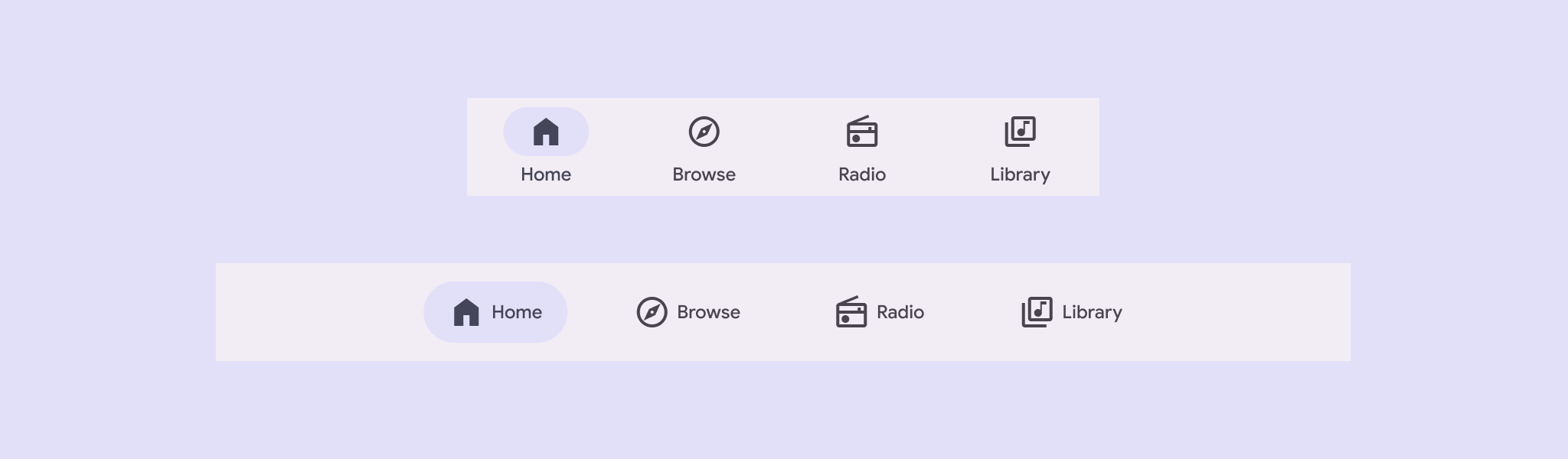 Navigation bar on compact and medium window sizes
Navigation bars can have three to five destinations. The nav bar is positioned at the bottom of screens for convenient access. Each destination is represented by an icon and label text.
Note: Images use various dynamic color schemes.
Design & API documentation
Anatomy
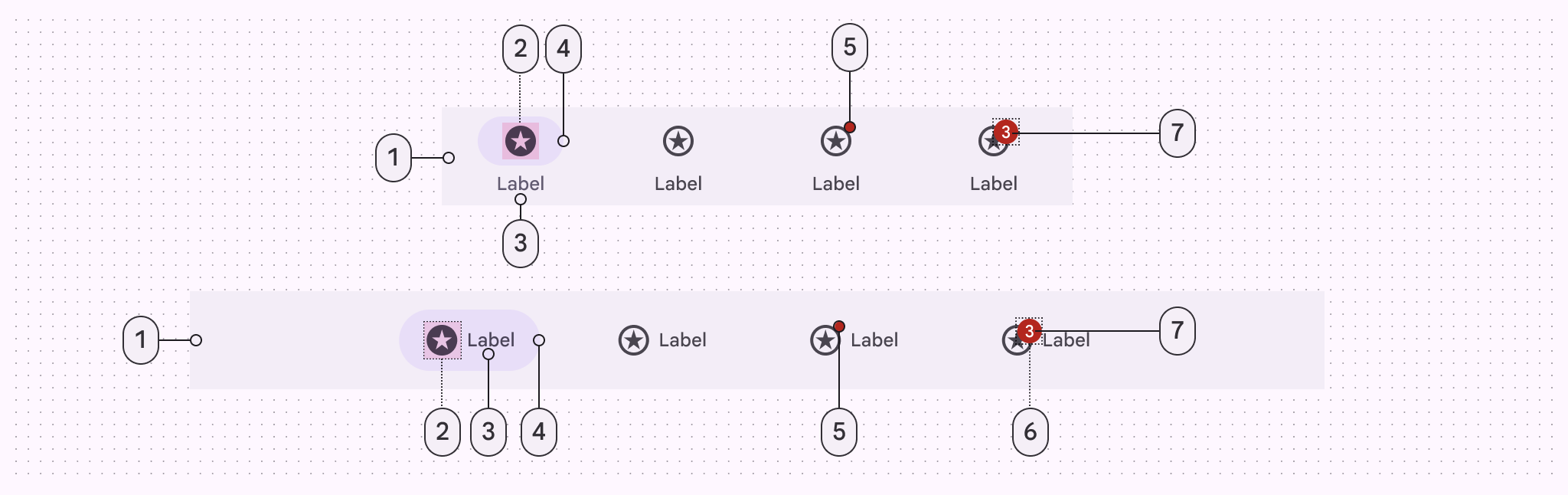
- Container
- Icon
- Label text
- Active indicator
- Small badge (optional)
- Large badge (optional)
- Large badge label
More details on anatomy items in the component guidelines.
M3 Expressive
M3 Expressive update
Before you can use Material3Expressive component styles, follow the
Material3Expressive themes setup instructions.
A new expressive style for the bottom navigation bar has been introduced that’s shorter and supports horizontal navigation items in medium-sized windows. More on M3 Expressive
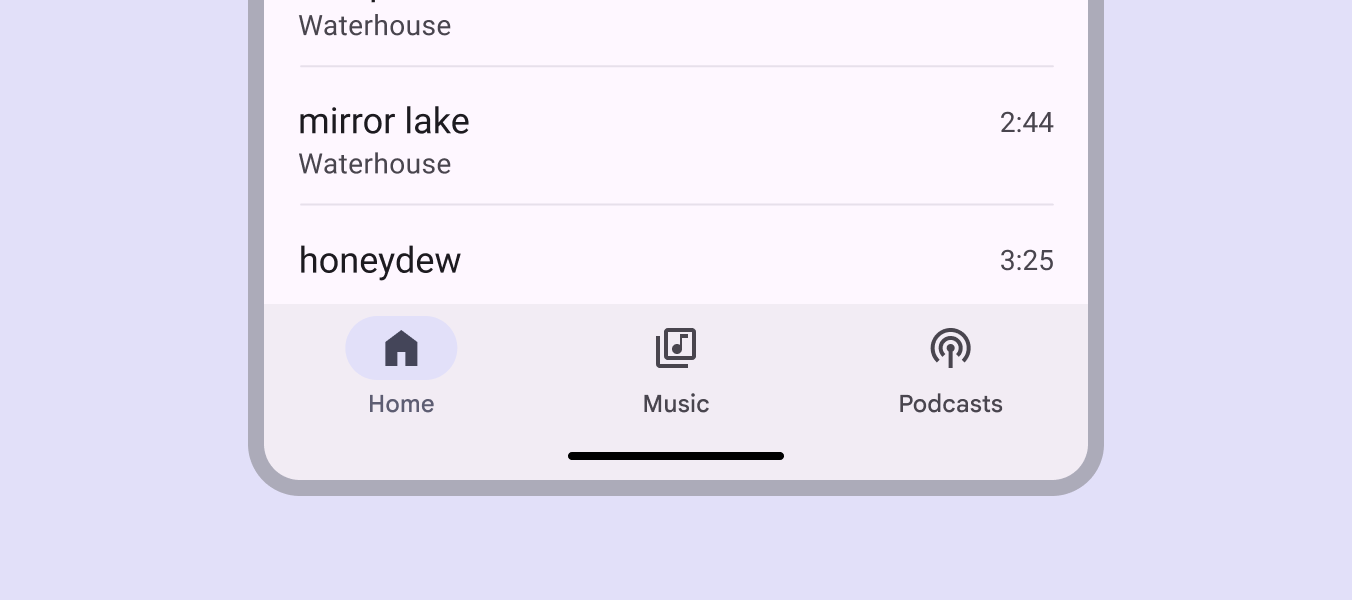
Color:
- Active label changed from on-surface-variant to secondary
M3 Expressive styles
Changes from M3:
- Height: From 80dp to 64dp
- Color: New expressive colors!
- Top item padding: From 12dp to 6dp
- Bottom item padding: From 16dp to 6dp
- Label text is no longer bolded when selected
- Active indicator: From 64dp to 56dp
- New horizontal item configuration on medium and larger window sizes (greater
than or equal to 600dp):
- Icon moves from top to start of item
- Instead of being a set width based on the item count, item width is based on content with a max width
- Item gravity: From top center to center
The default style for bottom navigation bar is:
<item name="bottomNavigationStyle">@style/Widget.Material3Expressive.BottomNavigationView</item>
Key properties
Container attributes
| Element | Attribute | Related methods | Default value |
|---|---|---|---|
| Color | app:backgroundTint |
N/A | ?attr/colorSurfaceContainer |
| Elevation | app:elevation |
setElevation |
3dp |
| Compat Shadow (deprecated) | compatShadowEnabled |
N/A | false |
Note: compatShadowEnabled has no effect, as the library no longer supports
pre-Lollipop.
Navigation bar item attributes
| Element | Attribute | Related methods | Default value |
|---|---|---|---|
| Menu resource | app:menu |
inflateMenugetMenu |
N/A |
| Ripple (inactive) | app:itemRippleColor |
setItemRippleColorgetItemRippleColor |
Variations of ?attr/colorPrimary and ?attr/colorOnSurfaceVariant (see all states) |
| Ripple (active) | ” | ” | Variations of ?attr/colorPrimary (see all states) |
| Label visibility mode | app:labelVisibilityMode |
setLabelVisibilityModegetLabelVisibilityMode |
LABEL_VISIBILITY_AUTO |
| Item Gravity | app:itemGravity |
setItemGravitygetItemGravity |
TOP_CENTER |
Active indicator attributes
| Element | Attribute | Related methods | Default value |
|---|---|---|---|
| Color | android:color |
setItemActiveIndicatorColorgetItemActiveIndicatorColor |
?attr/colorSecondaryContainer |
| Width | android:width |
setItemActiveIndicatorWidthgetItemActiveIndicatorWidth |
56dp |
| Height | android:height |
setItemActiveIndicatorHeightgetItemActiveIndicatorHeight |
32dp |
| Shape | app:shapeAppearance |
setItemActiveIndicatorShapeAppearancegetItemActiveIndicatorShapeAppearance |
50% rounded |
| Margin horizontal | app:marginHorizontal |
setItemActiveIndicatorMarginHorizontalgetItemActiveIndicatorMarginHorizontal |
4dp |
| Padding between indicator and label | app:activeIndicatorLabelPadding |
setActiveIndicatorLabelPadding getActiveIndicatorLabelPadding |
4dp |
| Expanded Width | app:expandedWidth |
setItemActiveIndicatorExpandedWidthgetItemActiveIndicatorExpandedWidth |
HUG |
| Expanded Height | app:expandedHeight |
setItemActiveIndicatorExpandedHeightgetItemActiveIndicatorExpandedHeight |
56dp |
| Expanded Margin horizontal | app:expandedMarginHorizontal |
setItemActiveIndicatorExpandedMarginHorizontalgetItemActiveIndicatorExpandedMarginHorizontal |
20dp |
| Expanded Start Padding | app:expandedActiveIndicatorPaddingStart |
setItemExpandedActiveIndicatorPadding |
16dp |
| Expanded End Padding | app:expandedActiveIndicatorPaddingEnd |
setItemExpandedActiveIndicatorPadding |
16dp |
| Expanded Top Padding | app:expandedActiveIndicatorPaddingTop |
setItemExpandedActiveIndicatorPadding |
0dp |
| Expanded Bottom Padding | app:expandedActiveIndicatorPaddingBottom |
setItemExpandedActiveIndicatorPadding |
0dp |
Note: The expanded active indicator refers to the active indicator that
expands to wrap the content of the navigation bar item when the
itemIconGravity value is equal to START.
Icon attributes
| Element | Attribute | Related methods | Default value |
|---|---|---|---|
| Icon | android:icon in the menu resource |
N/A | N/A |
| Size | app:itemIconSize |
setItemIconSizesetItemIconSizeResgetItemIconSize |
24dp |
| Color (inactive) | app:itemIconTint |
setItemIconTintListgetItemIconTintList |
?attr/colorOnSurfaceVariant (see all states) |
| Color (active) | ” | ” | ?attr/colorOnSecondaryContainer (see all states) |
| Gravity | app:itemIconGravity |
setItemIconGravitygetItemIconGravity |
TOP |
| Icon label horizontal padding | app:iconLabelHorizontalSpacing |
setIconLabelHorizontalSpacinggetIconLabelHorizontalSpacing |
4dp |
Text label attributes
| Element | Attribute | Related methods | Default value |
|---|---|---|---|
| Text label | android:title in the menu resource |
N/A | N/A |
| Color (inactive) | app:itemTextColor |
setItemTextColorgetItemTextColor |
?attr/colorOnSurfaceVariant (see all states) |
| Color (active) | ” | ” | ?attr/colorOnSurface (see all states) |
| Typography (inactive) | app:itemTextAppearanceInactiveapp:horizontalItemTextAppearanceInactive |
setItemTextAppearanceInactivegetItemTextAppearanceInactivesetHorizontalItemTextAppearanceInactivegetHorizontalItemTextAppearanceInactive |
?attr/textAppearanceTitleSmall |
| Typography (active) | app:itemTextAppearanceActiveapp:horizontalItemTextAppearanceActive |
setItemTextAppearanceActivegetItemTextAppearanceActivesetHorizontalItemTextAppearanceActivegetHorizontalItemTextAppearanceActive |
?attr/textAppearanceTitleSmall |
| Typography (active) | app:itemTextAppearanceActiveBoldEnabled |
setItemTextAppearanceActiveBoldEnabled |
true |
| Max lines | app:labelMaxLines |
setLabelMaxLinesgetLabelMaxLines |
1 |
| Scale with font size | app:scaleLabelWithFontSize |
setScaleLabelTextWithFontgetScaleLabelTextWithFont |
false |
Styles
| Element | Style | Container color | Icon/Text label color (inactive) | Icon/Text label color (active) | Theme attribute |
|---|---|---|---|---|---|
| Default style | Widget.Material3.BottomNavigationView |
?attr/colorSurface |
?attr/colorOnSurfaceVariant |
Icon: ?attr/colorOnSecondaryContainer Text: ?attr/colorOnSurface |
?attr/bottomNavigationStyle |
For the full list, see styles, navigation attributes, and navigation bar attributes.
Code implementation
Before you can use the Material navigation bar, you need to add a dependency to the Material components for Android library. For more information, go to the Getting started page.
Adding navigation bar
A typical layout looks like this:
<LinearLayout
    xmlns:android="http://schemas.android.com/apk/res/android"
    xmlns:app="http://schemas.android.com/apk/res-auto"
    android:layout_width="match_parent"
    android:layout_height="wrap_content">
  ...
  <com.google.android.material.bottomnavigation.BottomNavigationView
      android:id="@+id/bottom_navigation"
      android:layout_width="match_parent"
      android:layout_height="wrap_content"
      app:menu="@menu/bottom_navigation_menu" />

</LinearLayout>
The @menu/bottom_navigation_menu resource should point to a file named
bottom_navigation_menu.xml inside a menu resource directory:
<menu xmlns:android="http://schemas.android.com/apk/res/android">
  <item
      android:id="@+id/item_1"
      android:enabled="true"
      android:icon="@drawable/icon_1"
      android:title="@string/text_label_1"/>
  <item
      android:id="@+id/item_2"
      android:enabled="true"
      android:icon="@drawable/icon_2"
      android:title="@string/text_label_2"/>
</menu>
Note: BottomNavigationView does not support more than 5 menu items.
In code:
NavigationBarView.OnItemSelectedListener { item ->
    when(item.itemId) {
        R.id.item_1 -> {
            // Respond to navigation item 1 click
            true
        }
        R.id.item_2 -> {
            // Respond to navigation item 2 click
            true
        }
        else -> false
    }
}
There’s also a method for detecting when navigation items have been reselected:
bottomNavigation.setOnItemReselectedListener { item ->
    when(item.itemId) {
        R.id.item_1 -> {
            // Respond to navigation item 1 reselection
        }
        R.id.item_2 -> {
            // Respond to navigation item 2 reselection
        }
    }
}
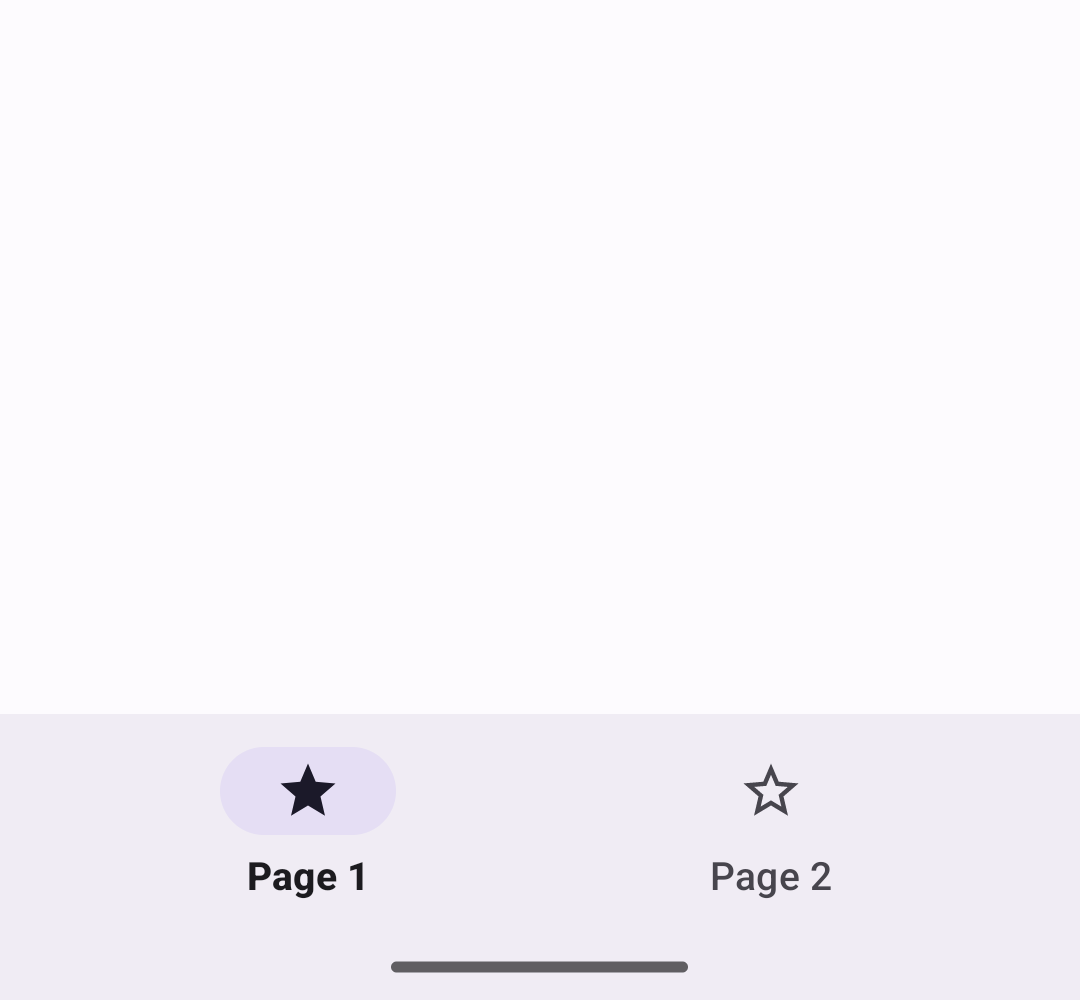
That results in:
Note: We have deprecated the
BottomNavigationView#setOnNavigationItemSelectedListener and
BottomNavigationView#setOnNavigationItemReselectedListener methods in favor of
the listeners in NavigationBarView. This allows you to share selection
handling code between the BottomNavigation and NavigationRail view elements.
Navigation bar example
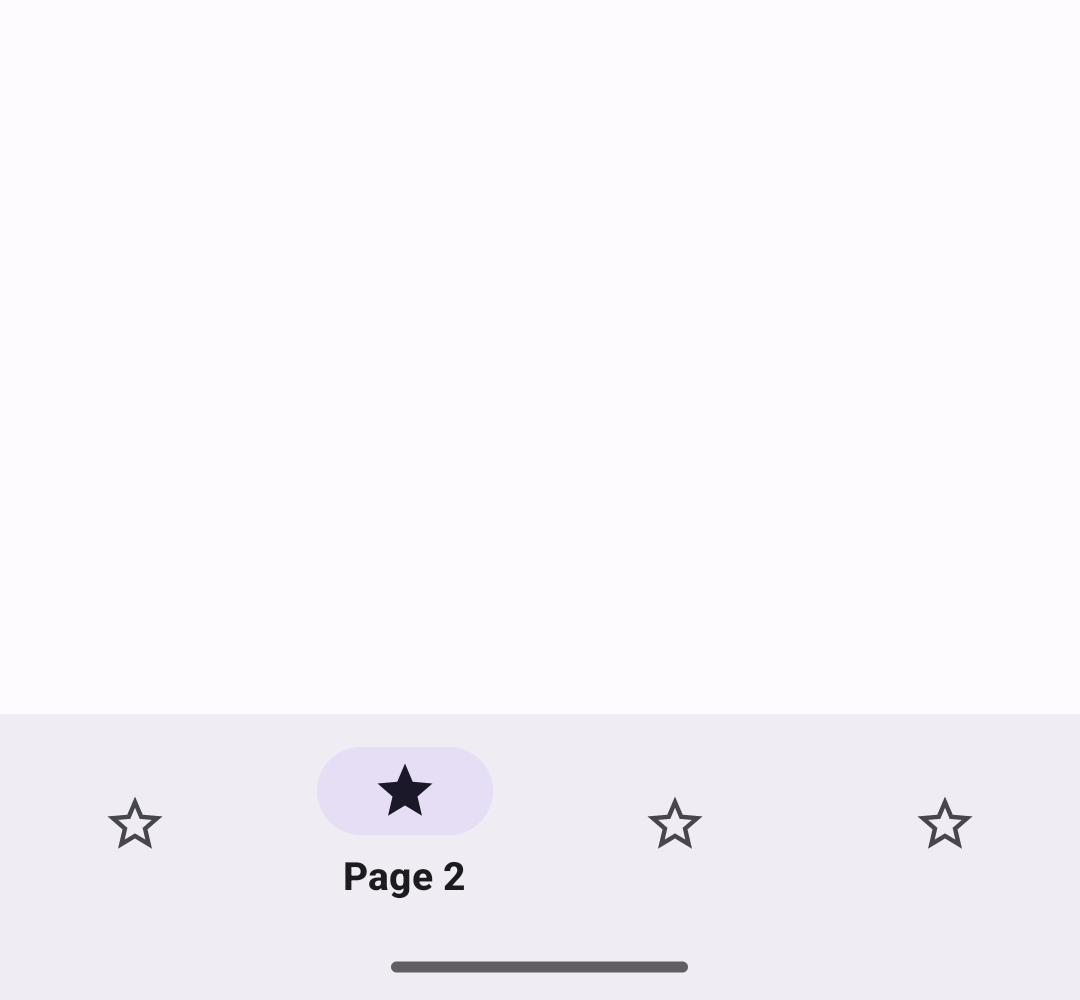
The following example shows a navigation bar with four icons:
In layout.xml:
<LinearLayout
    xmlns:android="http://schemas.android.com/apk/res/android"
    xmlns:app="http://schemas.android.com/apk/res-auto"
    android:layout_width="match_parent"
    android:layout_height="wrap_content">

  <com.google.android.material.bottomnavigation.BottomNavigationView
      android:id="@+id/bottom_navigation"
      android:layout_width="match_parent"
      android:layout_height="wrap_content"
      app:menu="@menu/bottom_navigation_menu" />

</LinearLayout>
In bottom_navigation_menu.xml inside a menu resource directory:
<menu xmlns:android="http://schemas.android.com/apk/res/android">
  <item
      android:id="@+id/page_1"
      android:enabled="true"
      android:icon="@drawable/ic_star"
      android:title="@string/page_1"/>
  <item
      android:id="@+id/page_2"
      android:enabled="true"
      android:icon="@drawable/ic_star"
      android:title="@string/page_2"/>
  <item
      android:id="@+id/page_3"
      android:enabled="true"
      android:icon="@drawable/ic_star"
      android:title="@string/page_3"/>
  <item
      android:id="@+id/page_4"
      android:enabled="true"
      android:icon="@drawable/ic_star"
      android:title="@string/page_4"/>
</menu>
In code:
bottomNavigation.selectedItemId = R.id.page_2
Adding navigation bar on larger screens
On medium screen sizes and larger, navigation bars are recommended to be a
horizontal item configuration, by setting app:itemIconGravity to be start
instead of top. You can do this by
setting alternative layouts identified by resource qualifiers.
Here’s an example:
<com.google.android.material.bottomnavigation.BottomNavigationView
  android:id="@+id/bottom_navigation_bar"
  android:layout_width="match_parent"
  android:layout_height="wrap_content"
  android:layout_gravity="bottom"
  app:itemIconGravity="start"
  app:itemGravity="center"
  app:menu="@menu/bottom_navigation_menu"/>

Making navigation bar accessible
You should set an android:title for each of your menu items so that screen
readers like TalkBack can properly announce what each navigation item
represents:
<menu xmlns:android="http://schemas.android.com/apk/res/android">
  <item
      ...
      android:title="@string/text_label"/>
  ...
</menu>
The labelVisibilityMode attribute can be used to adjust the behavior of the
text labels for each navigation bar item. There are four visibility modes:
LABEL_VISIBILITY_AUTO(default): The label behaves as “labeled” when there are 3 items or less, or “selected” when there are 4 items or moreLABEL_VISIBILITY_SELECTED: The label is only shown on the selected navigation itemLABEL_VISIBILITY_LABELED: The label is shown on all navigation itemsLABEL_VISIBILITY_UNLABELED: The label is hidden for all navigation items
Adding badges

Initialize and show a BadgeDrawable associated with menuItemId, subsequent
calls to this method will reuse the existing BadgeDrawable:
var badge = bottomNavigation.getOrCreateBadge(menuItemId)
badge.isVisible = true
// An icon only badge will be displayed unless a number or text is set:
badge.number = 99  // or badge.text = "New"
As a best practice, if you need to temporarily hide the badge, for instance
until the next notification is received, change the visibility of
BadgeDrawable:
val badgeDrawable = bottomNavigation.getBadge(menuItemId)
    if (badgeDrawable != null) {
        badgeDrawable.isVisible = false
        badgeDrawable.clearNumber()  // or badgeDrawable.clearText()
    }
To remove any BadgeDrawables that are no longer needed:
bottomNavigation.removeBadge(menuItemId)
See the Badges documentation for more information about
badges.
Customizing navigation bar
Theming a navigation bar
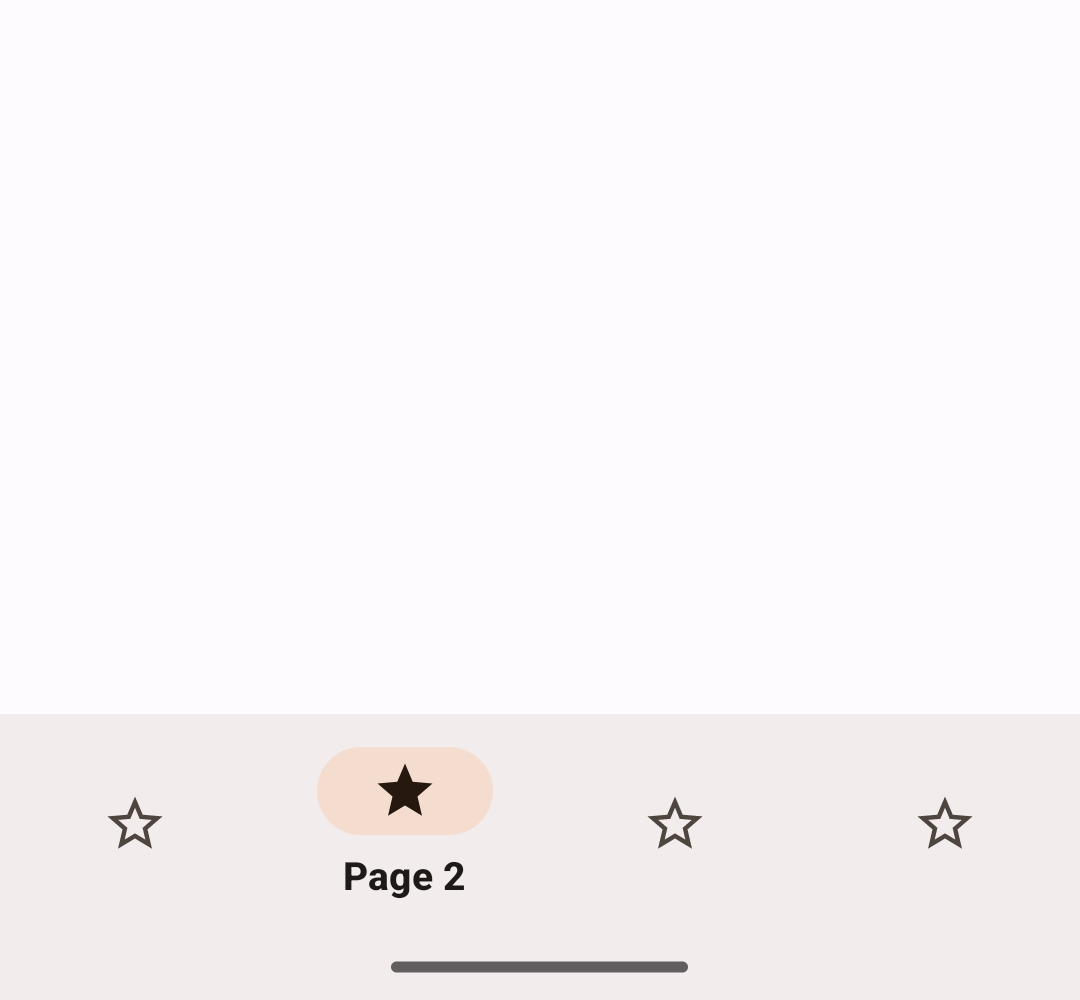
Navigation bars support the customization of color and typography.
Navigation bar theming example
API and source code:
BottomNavigationView
The following example shows a navigation bar with Material theming.
Implementing navigation bar theming
Use theme attributes and a style in res/values/styles.xml, which applies to
all navigation bars and affects other components:
<style name="Theme.App" parent="Theme.Material3.*">
    ...
    <item name="colorSurface">@color/shrine_theme_light_surface</item>
    <item name="colorOnSurfaceVariant">@color/shrine_theme_light_onSurfaceVariant</item>
</style>
Use a default style theme attribute, styles, and a theme overlay, which apply to all navigation bars but do not affect other components:
<style name="Theme.App" parent="Theme.Material3.*">
    ...
    <item name="bottomNavigationStyle">@style/Widget.App.BottomNavigationView</item>
</style>

<style name="Widget.App.BottomNavigationView" parent="Widget.Material3.BottomNavigationView">
    <item name="materialThemeOverlay">@style/ThemeOverlay.App.BottomNavigationView</item>
</style>

<style name="ThemeOverlay.App.BottomNavigationView" parent="">
    <item name="colorSurface">@color/shrine_theme_light_surface</item>
    <item name="colorOnSurfaceVariant">@color/shrine_theme_light_onSurfaceVariant</item>
</style>
Use the style in the layout, which affects only this specific navigation bar:
<com.google.android.material.bottomnavigation.BottomNavigationView
    ...
    style="@style/Widget.App.BottomNavigationView"
/>